> ## Documentation Index
> Fetch the complete documentation index at: https://docs-staging-feat-acul-js-sdk-1-7-0-docs.mintlify.site/llms.txt
> Use this file to discover all available pages before exploring further.

> Learn how to configure a progressive profile form using Forms for Actions

# Use Cases: Configure a progressive profile form using Forms

<Card title="Before you start">
  1. Create a [Machine-to-Machine Application](/docs/get-started/auth0-overview/create-applications/machine-to-machine-apps) with the following scopes enabled:

  * `read:users`
  * `update:users`
  * `create:users`
  * `read:users_app_metadata`
  * `update:users_app_metadata`
  * `create:users_app_metadata`

  2. Add a [Vault connection](/docs/customize/forms/vault) using the M2M application credentials.
</Card>

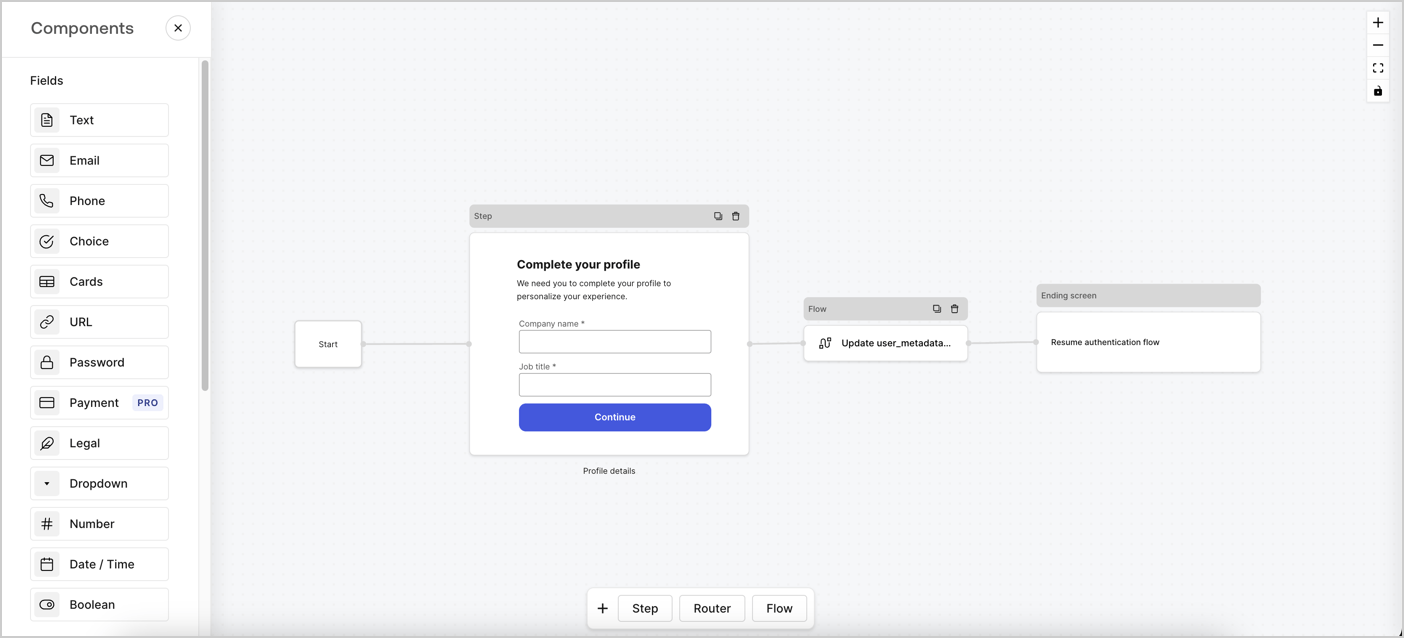
Forms for Actions allows you to create progressive profiling flows to decide when to prompt users to collect missing information, such as company name and job title, and store them as `user_metadata` attributes.
<Frame>
  <img src="https://mintcdn.com/docs-staging-feat-acul-js-sdk-1-7-0-docs/U_PgG8V8hQQAn7Zz/docs/images/cdy7uua7fh8z/xUx9YmnHvnAqL19JvNtNP/60dae88f893d4ebe8e3523421e960596/Progressive-profle-overview.png?fit=max&auto=format&n=U_PgG8V8hQQAn7Zz&q=85&s=a704bd68d4e6f79ccacd525358145146" alt="Dashboard > Actions > Forms > Form" data-og-width="1404" width="1404" data-og-height="638" height="638" data-path="docs/images/cdy7uua7fh8z/xUx9YmnHvnAqL19JvNtNP/60dae88f893d4ebe8e3523421e960596/Progressive-profle-overview.png" data-optimize="true" data-opv="3" srcset="https://mintcdn.com/docs-staging-feat-acul-js-sdk-1-7-0-docs/U_PgG8V8hQQAn7Zz/docs/images/cdy7uua7fh8z/xUx9YmnHvnAqL19JvNtNP/60dae88f893d4ebe8e3523421e960596/Progressive-profle-overview.png?w=280&fit=max&auto=format&n=U_PgG8V8hQQAn7Zz&q=85&s=958f636fc757b25f1c496984ff722ee3 280w, https://mintcdn.com/docs-staging-feat-acul-js-sdk-1-7-0-docs/U_PgG8V8hQQAn7Zz/docs/images/cdy7uua7fh8z/xUx9YmnHvnAqL19JvNtNP/60dae88f893d4ebe8e3523421e960596/Progressive-profle-overview.png?w=560&fit=max&auto=format&n=U_PgG8V8hQQAn7Zz&q=85&s=77d9934ea89aec20a892a7505064b065 560w, https://mintcdn.com/docs-staging-feat-acul-js-sdk-1-7-0-docs/U_PgG8V8hQQAn7Zz/docs/images/cdy7uua7fh8z/xUx9YmnHvnAqL19JvNtNP/60dae88f893d4ebe8e3523421e960596/Progressive-profle-overview.png?w=840&fit=max&auto=format&n=U_PgG8V8hQQAn7Zz&q=85&s=209f744591662f01f418ad61cf7e1814 840w, https://mintcdn.com/docs-staging-feat-acul-js-sdk-1-7-0-docs/U_PgG8V8hQQAn7Zz/docs/images/cdy7uua7fh8z/xUx9YmnHvnAqL19JvNtNP/60dae88f893d4ebe8e3523421e960596/Progressive-profle-overview.png?w=1100&fit=max&auto=format&n=U_PgG8V8hQQAn7Zz&q=85&s=af265555e49c8116a8e3ddbc3fcc1ae2 1100w, https://mintcdn.com/docs-staging-feat-acul-js-sdk-1-7-0-docs/U_PgG8V8hQQAn7Zz/docs/images/cdy7uua7fh8z/xUx9YmnHvnAqL19JvNtNP/60dae88f893d4ebe8e3523421e960596/Progressive-profle-overview.png?w=1650&fit=max&auto=format&n=U_PgG8V8hQQAn7Zz&q=85&s=07492b7eaa02f17b91c63d7546a14b62 1650w, https://mintcdn.com/docs-staging-feat-acul-js-sdk-1-7-0-docs/U_PgG8V8hQQAn7Zz/docs/images/cdy7uua7fh8z/xUx9YmnHvnAqL19JvNtNP/60dae88f893d4ebe8e3523421e960596/Progressive-profle-overview.png?w=2500&fit=max&auto=format&n=U_PgG8V8hQQAn7Zz&q=85&s=a283666c9601019f8dcad30e784f6e51 2500w" />
</Frame>

The sections below outline how you can create a progressive profile form using nodes and flows, along with steps for adding your form to a [Post Login Action](/docs/customize/actions/explore-triggers/signup-and-login-triggers/login-trigger).

## Create a form from scratch

Follow these steps to create a form to gather information:

1. Open the Form editor by selecting **Auth0 Dashboard > Actions > Forms.**
2. Select **Create Form** > **Start from scratch**.

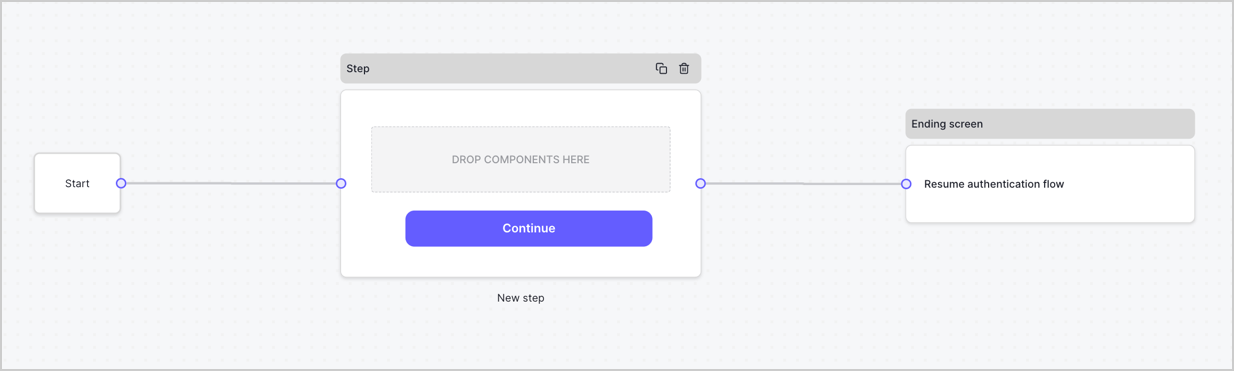
By default, a new form contains a Start node, a Step node, and an Ending screen node.
<Frame>
  <img src="https://mintcdn.com/docs-staging-feat-acul-js-sdk-1-7-0-docs/qy_cZzsCifj8OPXY/docs/images/cdy7uua7fh8z/2TZ9jSjgEcARFpULI6hz4R/a4319a1bd482f2ee5cc23100fdb2f42c/New-form-Forms-for-action-use-case.png?fit=max&auto=format&n=qy_cZzsCifj8OPXY&q=85&s=0eac22aeed7c2c6b15a31f358e94bea9" alt="Dashboard > Forms > Use Cases > Form" data-og-width="1234" width="1234" data-og-height="371" height="371" data-path="docs/images/cdy7uua7fh8z/2TZ9jSjgEcARFpULI6hz4R/a4319a1bd482f2ee5cc23100fdb2f42c/New-form-Forms-for-action-use-case.png" data-optimize="true" data-opv="3" srcset="https://mintcdn.com/docs-staging-feat-acul-js-sdk-1-7-0-docs/qy_cZzsCifj8OPXY/docs/images/cdy7uua7fh8z/2TZ9jSjgEcARFpULI6hz4R/a4319a1bd482f2ee5cc23100fdb2f42c/New-form-Forms-for-action-use-case.png?w=280&fit=max&auto=format&n=qy_cZzsCifj8OPXY&q=85&s=e2b31b7ea6bb227d33fb5491e2e135de 280w, https://mintcdn.com/docs-staging-feat-acul-js-sdk-1-7-0-docs/qy_cZzsCifj8OPXY/docs/images/cdy7uua7fh8z/2TZ9jSjgEcARFpULI6hz4R/a4319a1bd482f2ee5cc23100fdb2f42c/New-form-Forms-for-action-use-case.png?w=560&fit=max&auto=format&n=qy_cZzsCifj8OPXY&q=85&s=024a0b35e6c14352858f681b2913298e 560w, https://mintcdn.com/docs-staging-feat-acul-js-sdk-1-7-0-docs/qy_cZzsCifj8OPXY/docs/images/cdy7uua7fh8z/2TZ9jSjgEcARFpULI6hz4R/a4319a1bd482f2ee5cc23100fdb2f42c/New-form-Forms-for-action-use-case.png?w=840&fit=max&auto=format&n=qy_cZzsCifj8OPXY&q=85&s=4b44785fe27e7a844fc91b164abbdd92 840w, https://mintcdn.com/docs-staging-feat-acul-js-sdk-1-7-0-docs/qy_cZzsCifj8OPXY/docs/images/cdy7uua7fh8z/2TZ9jSjgEcARFpULI6hz4R/a4319a1bd482f2ee5cc23100fdb2f42c/New-form-Forms-for-action-use-case.png?w=1100&fit=max&auto=format&n=qy_cZzsCifj8OPXY&q=85&s=e0efd6a8012222e4bd9d3bd6495d800e 1100w, https://mintcdn.com/docs-staging-feat-acul-js-sdk-1-7-0-docs/qy_cZzsCifj8OPXY/docs/images/cdy7uua7fh8z/2TZ9jSjgEcARFpULI6hz4R/a4319a1bd482f2ee5cc23100fdb2f42c/New-form-Forms-for-action-use-case.png?w=1650&fit=max&auto=format&n=qy_cZzsCifj8OPXY&q=85&s=d8b919cdf7551a57f5cc27d8af6ae368 1650w, https://mintcdn.com/docs-staging-feat-acul-js-sdk-1-7-0-docs/qy_cZzsCifj8OPXY/docs/images/cdy7uua7fh8z/2TZ9jSjgEcARFpULI6hz4R/a4319a1bd482f2ee5cc23100fdb2f42c/New-form-Forms-for-action-use-case.png?w=2500&fit=max&auto=format&n=qy_cZzsCifj8OPXY&q=85&s=82027bff2fb7c0ea999f1d48a98228b5 2500w" />
</Frame>

### Configure the Step node

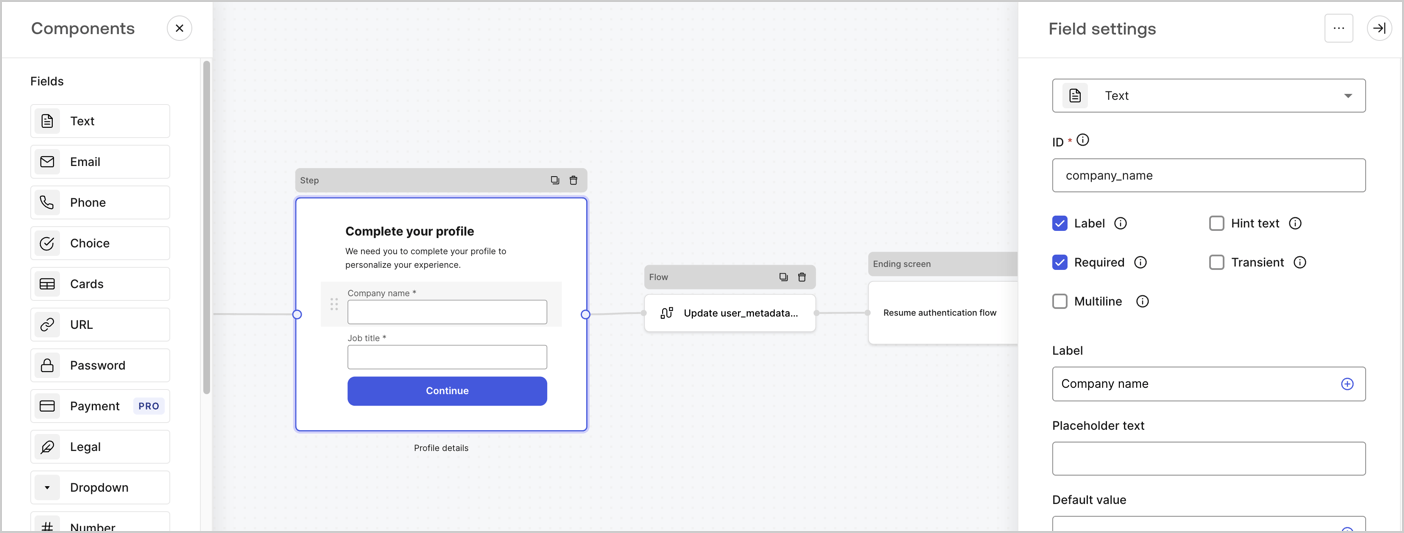
The Step node is the graphical interface visible to users. Add [Fields](/docs/customize/forms/nodes-and-components) to the Step node to collect the user's company name and job title values by following these steps:

1. Drag a **Rich text** field from the **Components menu** into the **Step** node.

   * **Rich text**: Enter a custom message.

     * **Example**: `Complete your profile! We need you to complete your profile to personalize your experience.`
   * Select **Save**.
2. Drag a **Text** field into the **Step** node.

   * **ID**: Enter `company_name`.
   * **Label**: Enable the checkbox.
   * **Label**: Enter `Company name`.
   * **Required**: Enable the checkbox.
   * Select **Save**.
3. Drag a **Text** field into the **Step** node.

   1. **ID**: Enter `job_title`.
   2. **Label**: Enter `Job title`.
   3. **Label**: Enable the checkbox.
   4. **Required**: Enable the checkbox.
   5. Select **Save**.
4. Select **Publish** to save.
<Frame>
  <img src="https://mintcdn.com/docs-staging-feat-acul-js-sdk-1-7-0-docs/BBoh2i8DRnlTJSC0/docs/images/cdy7uua7fh8z/6H1lRzwKyYioQyQJ9MtIoM/aa248e92fc028a68a5b92ff361a11644/progressive-profile-step.png?fit=max&auto=format&n=BBoh2i8DRnlTJSC0&q=85&s=b9e3032fc1934f222795128fafeee783" alt="Dashboard > Actions > Forms > Form > Step node" data-og-width="1404" width="1404" data-og-height="533" height="533" data-path="docs/images/cdy7uua7fh8z/6H1lRzwKyYioQyQJ9MtIoM/aa248e92fc028a68a5b92ff361a11644/progressive-profile-step.png" data-optimize="true" data-opv="3" srcset="https://mintcdn.com/docs-staging-feat-acul-js-sdk-1-7-0-docs/BBoh2i8DRnlTJSC0/docs/images/cdy7uua7fh8z/6H1lRzwKyYioQyQJ9MtIoM/aa248e92fc028a68a5b92ff361a11644/progressive-profile-step.png?w=280&fit=max&auto=format&n=BBoh2i8DRnlTJSC0&q=85&s=41590ce116223544d4e82d2df9abbc62 280w, https://mintcdn.com/docs-staging-feat-acul-js-sdk-1-7-0-docs/BBoh2i8DRnlTJSC0/docs/images/cdy7uua7fh8z/6H1lRzwKyYioQyQJ9MtIoM/aa248e92fc028a68a5b92ff361a11644/progressive-profile-step.png?w=560&fit=max&auto=format&n=BBoh2i8DRnlTJSC0&q=85&s=a860f2a9ad777194428c7e0c1b524675 560w, https://mintcdn.com/docs-staging-feat-acul-js-sdk-1-7-0-docs/BBoh2i8DRnlTJSC0/docs/images/cdy7uua7fh8z/6H1lRzwKyYioQyQJ9MtIoM/aa248e92fc028a68a5b92ff361a11644/progressive-profile-step.png?w=840&fit=max&auto=format&n=BBoh2i8DRnlTJSC0&q=85&s=acefb0579ace22dfb7a28041bbacaa7e 840w, https://mintcdn.com/docs-staging-feat-acul-js-sdk-1-7-0-docs/BBoh2i8DRnlTJSC0/docs/images/cdy7uua7fh8z/6H1lRzwKyYioQyQJ9MtIoM/aa248e92fc028a68a5b92ff361a11644/progressive-profile-step.png?w=1100&fit=max&auto=format&n=BBoh2i8DRnlTJSC0&q=85&s=37f50e18da77625df5e26ab87515dc8e 1100w, https://mintcdn.com/docs-staging-feat-acul-js-sdk-1-7-0-docs/BBoh2i8DRnlTJSC0/docs/images/cdy7uua7fh8z/6H1lRzwKyYioQyQJ9MtIoM/aa248e92fc028a68a5b92ff361a11644/progressive-profile-step.png?w=1650&fit=max&auto=format&n=BBoh2i8DRnlTJSC0&q=85&s=2b797cd74b05380c55e32badcc93929d 1650w, https://mintcdn.com/docs-staging-feat-acul-js-sdk-1-7-0-docs/BBoh2i8DRnlTJSC0/docs/images/cdy7uua7fh8z/6H1lRzwKyYioQyQJ9MtIoM/aa248e92fc028a68a5b92ff361a11644/progressive-profile-step.png?w=2500&fit=max&auto=format&n=BBoh2i8DRnlTJSC0&q=85&s=c57080b5104bae870a6a862ad24f2a9e 2500w" />
</Frame>

### Configure the flow node

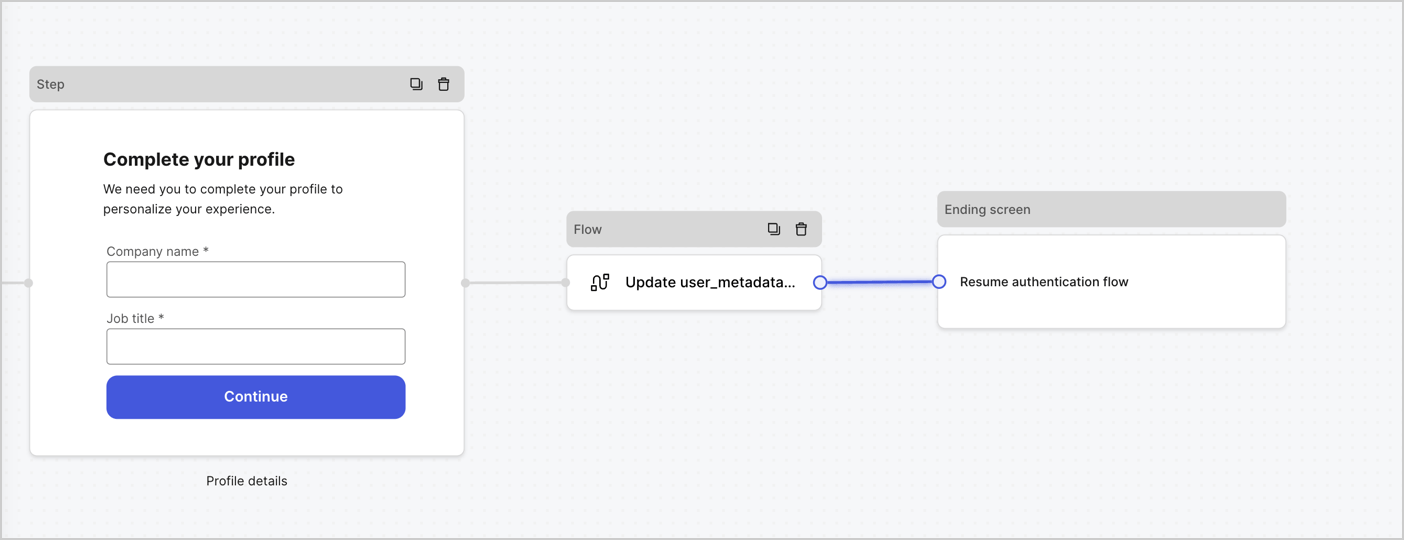
Add a **Flow** node after the **Step** node to update the `user_metadata` and resume the authentication flow by following these steps:

1. Select **Flow** from the bottom of the Form editor.
2. Remove the existing link between the **Step** and **Ending Screen** nodes.
3. Select the new **Flow** > **Click to add a flow** > **Create a new flow.**

   * Enter `Update user_metadata` in the **Name** field.
   * Select **Create**.
   * Select **Save**.
4. Link the **Flow** node to the **Step** and **Ending Screen** nodes as pictured below.
5. Select **Publish** to save.
<Frame>
  <img src="https://mintcdn.com/docs-staging-feat-acul-js-sdk-1-7-0-docs/p1pRgG0usRxks6z6/docs/images/cdy7uua7fh8z/5C91DaWn4LGtJT9BF87ssu/095171d0c452a287c44bfde12fd6d13f/link-nodes.png?fit=max&auto=format&n=p1pRgG0usRxks6z6&q=85&s=66f8bf35c132e397ac22a479507da249" alt="Dashboard > Actions > Forms > Form" data-og-width="1404" width="1404" data-og-height="540" height="540" data-path="docs/images/cdy7uua7fh8z/5C91DaWn4LGtJT9BF87ssu/095171d0c452a287c44bfde12fd6d13f/link-nodes.png" data-optimize="true" data-opv="3" srcset="https://mintcdn.com/docs-staging-feat-acul-js-sdk-1-7-0-docs/p1pRgG0usRxks6z6/docs/images/cdy7uua7fh8z/5C91DaWn4LGtJT9BF87ssu/095171d0c452a287c44bfde12fd6d13f/link-nodes.png?w=280&fit=max&auto=format&n=p1pRgG0usRxks6z6&q=85&s=fbd4ab6399ca5a7c86efe3f2530e07f9 280w, https://mintcdn.com/docs-staging-feat-acul-js-sdk-1-7-0-docs/p1pRgG0usRxks6z6/docs/images/cdy7uua7fh8z/5C91DaWn4LGtJT9BF87ssu/095171d0c452a287c44bfde12fd6d13f/link-nodes.png?w=560&fit=max&auto=format&n=p1pRgG0usRxks6z6&q=85&s=fbd23f78f754b4459575665c39c17529 560w, https://mintcdn.com/docs-staging-feat-acul-js-sdk-1-7-0-docs/p1pRgG0usRxks6z6/docs/images/cdy7uua7fh8z/5C91DaWn4LGtJT9BF87ssu/095171d0c452a287c44bfde12fd6d13f/link-nodes.png?w=840&fit=max&auto=format&n=p1pRgG0usRxks6z6&q=85&s=4253fd4e1b33ef8590eed751900da92e 840w, https://mintcdn.com/docs-staging-feat-acul-js-sdk-1-7-0-docs/p1pRgG0usRxks6z6/docs/images/cdy7uua7fh8z/5C91DaWn4LGtJT9BF87ssu/095171d0c452a287c44bfde12fd6d13f/link-nodes.png?w=1100&fit=max&auto=format&n=p1pRgG0usRxks6z6&q=85&s=3d07760054d52663dc66f29bf6c75d46 1100w, https://mintcdn.com/docs-staging-feat-acul-js-sdk-1-7-0-docs/p1pRgG0usRxks6z6/docs/images/cdy7uua7fh8z/5C91DaWn4LGtJT9BF87ssu/095171d0c452a287c44bfde12fd6d13f/link-nodes.png?w=1650&fit=max&auto=format&n=p1pRgG0usRxks6z6&q=85&s=dd9385f6da2fbb7a29ad3e82bc715199 1650w, https://mintcdn.com/docs-staging-feat-acul-js-sdk-1-7-0-docs/p1pRgG0usRxks6z6/docs/images/cdy7uua7fh8z/5C91DaWn4LGtJT9BF87ssu/095171d0c452a287c44bfde12fd6d13f/link-nodes.png?w=2500&fit=max&auto=format&n=p1pRgG0usRxks6z6&q=85&s=95097a10b0b670521ab992bef77075e1 2500w" />
</Frame>

Add an Auth0 Update user action to the flow by following these steps:

1. Select the **Update user\_metadata** flow, then select the **Edit Flow** to open the Flow editor in a new tab.
2. Below the **Start** action, select the **+** icon to add an **Update user** action. Complete the fields below, then select **Save** to continue.

   * **Connection**: Select from the dropdown the Vault connection to your M2M application.

   * **User ID**: Enter `{{context.user.user_id}}`.

   * **Body**: Copy and paste the following code to update the user\_metadata with `job_title` and `company_name` properties.

     ```json lines theme={null}
     {
        "user_metadata": {
           "job_title": "{{fields.job_title}}",
           "company_name": "{{fields.company_name}}"
        }
     }
     ```

   * Select **Save**.
3. Select **Publish** to save.

<Frame>
  <img src="https://mintcdn.com/docs-staging-feat-acul-js-sdk-1-7-0-docs/Yz2uQfY-DVUNvuqK/docs/images/cdy7uua7fh8z/65Jx4W5oIZJyyvA8z4HqIx/0661b1a8ca6361c54fc4fef07ba59f0b/update-user.png?fit=max&auto=format&n=Yz2uQfY-DVUNvuqK&q=85&s=c88f8c232fbf270d2fd549f544fc6a30" alt="Dashboard > Actions > Forms > Flows" data-og-width="1404" width="1404" data-og-height="244" height="244" data-path="docs/images/cdy7uua7fh8z/65Jx4W5oIZJyyvA8z4HqIx/0661b1a8ca6361c54fc4fef07ba59f0b/update-user.png" data-optimize="true" data-opv="3" srcset="https://mintcdn.com/docs-staging-feat-acul-js-sdk-1-7-0-docs/Yz2uQfY-DVUNvuqK/docs/images/cdy7uua7fh8z/65Jx4W5oIZJyyvA8z4HqIx/0661b1a8ca6361c54fc4fef07ba59f0b/update-user.png?w=280&fit=max&auto=format&n=Yz2uQfY-DVUNvuqK&q=85&s=c7bf9d71bff79b9e49f2ed4930a05ec5 280w, https://mintcdn.com/docs-staging-feat-acul-js-sdk-1-7-0-docs/Yz2uQfY-DVUNvuqK/docs/images/cdy7uua7fh8z/65Jx4W5oIZJyyvA8z4HqIx/0661b1a8ca6361c54fc4fef07ba59f0b/update-user.png?w=560&fit=max&auto=format&n=Yz2uQfY-DVUNvuqK&q=85&s=1f375f7ba1cf15365ec5d59374b9ca1e 560w, https://mintcdn.com/docs-staging-feat-acul-js-sdk-1-7-0-docs/Yz2uQfY-DVUNvuqK/docs/images/cdy7uua7fh8z/65Jx4W5oIZJyyvA8z4HqIx/0661b1a8ca6361c54fc4fef07ba59f0b/update-user.png?w=840&fit=max&auto=format&n=Yz2uQfY-DVUNvuqK&q=85&s=63cc58fe435f615ed0b04fdf68fe366f 840w, https://mintcdn.com/docs-staging-feat-acul-js-sdk-1-7-0-docs/Yz2uQfY-DVUNvuqK/docs/images/cdy7uua7fh8z/65Jx4W5oIZJyyvA8z4HqIx/0661b1a8ca6361c54fc4fef07ba59f0b/update-user.png?w=1100&fit=max&auto=format&n=Yz2uQfY-DVUNvuqK&q=85&s=e4b6b54e9434643a1d418f116303b61c 1100w, https://mintcdn.com/docs-staging-feat-acul-js-sdk-1-7-0-docs/Yz2uQfY-DVUNvuqK/docs/images/cdy7uua7fh8z/65Jx4W5oIZJyyvA8z4HqIx/0661b1a8ca6361c54fc4fef07ba59f0b/update-user.png?w=1650&fit=max&auto=format&n=Yz2uQfY-DVUNvuqK&q=85&s=1502606da1d3140a88ed478625a4fb3a 1650w, https://mintcdn.com/docs-staging-feat-acul-js-sdk-1-7-0-docs/Yz2uQfY-DVUNvuqK/docs/images/cdy7uua7fh8z/65Jx4W5oIZJyyvA8z4HqIx/0661b1a8ca6361c54fc4fef07ba59f0b/update-user.png?w=2500&fit=max&auto=format&n=Yz2uQfY-DVUNvuqK&q=85&s=5a103fa7ae97d726fb5b63c4d02e4000 2500w" />
</Frame>

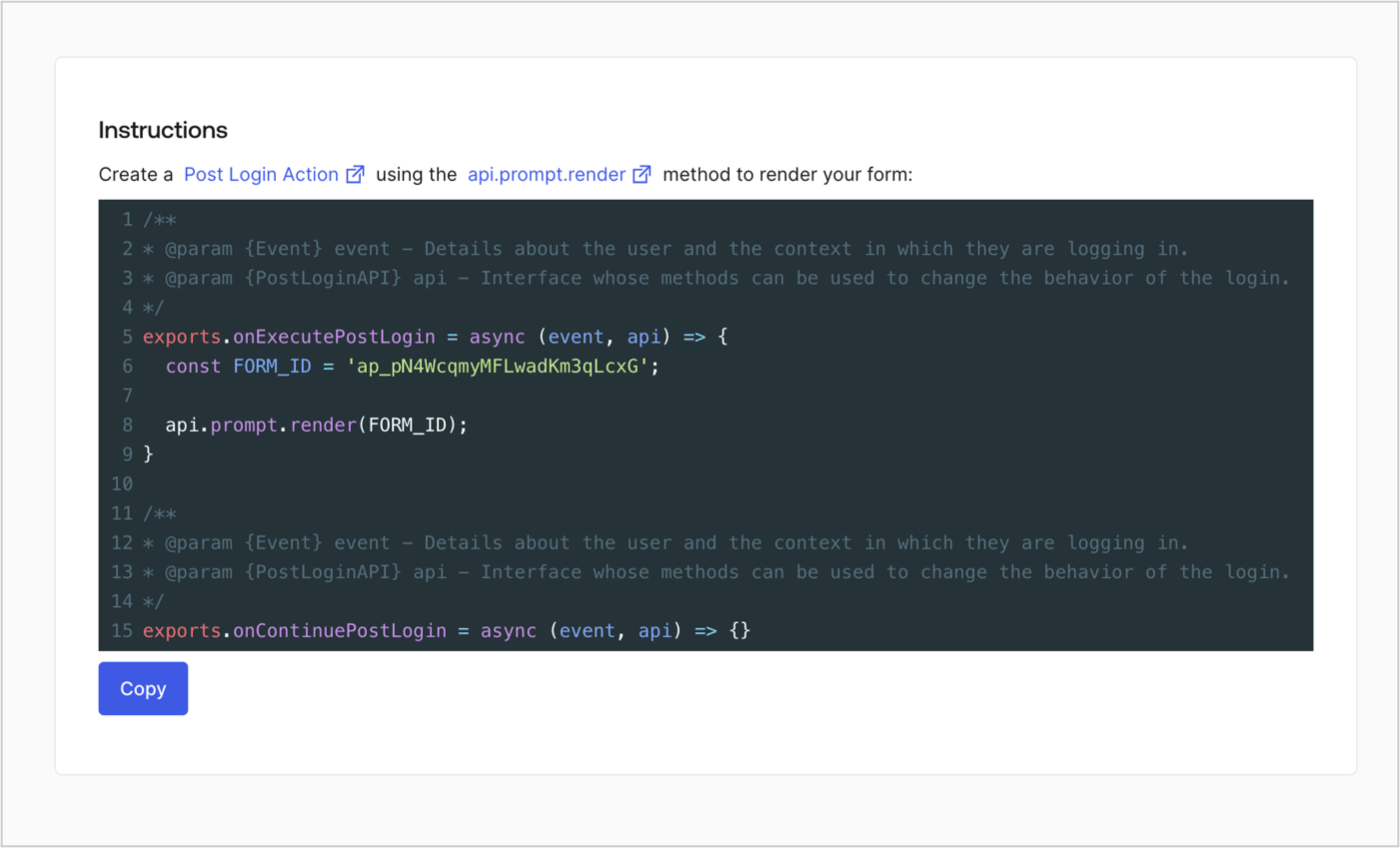
### Retrieve the form render code

Retrieve the form render code to visually render the form with a custom Post Login Action by following these steps:

* From the Form editor, select **`<> Render`**.
* Select **Copy**.
<Frame>
  <img src="https://mintcdn.com/docs-staging-feat-acul-js-sdk-1-7-0-docs/YA6YwITUEnIUiKMc/docs/images/cdy7uua7fh8z/2EIUzc539sq9lwoTKbjoJv/496a864c0fc44a782c9cadca119dbfb0/embed.png?fit=max&auto=format&n=YA6YwITUEnIUiKMc&q=85&s=be6e1ef672bb02109867adef16576209" alt="Dashboard > Actions > Forms > Form > Embed" data-og-width="1400" width="1400" data-og-height="848" height="848" data-path="docs/images/cdy7uua7fh8z/2EIUzc539sq9lwoTKbjoJv/496a864c0fc44a782c9cadca119dbfb0/embed.png" data-optimize="true" data-opv="3" srcset="https://mintcdn.com/docs-staging-feat-acul-js-sdk-1-7-0-docs/YA6YwITUEnIUiKMc/docs/images/cdy7uua7fh8z/2EIUzc539sq9lwoTKbjoJv/496a864c0fc44a782c9cadca119dbfb0/embed.png?w=280&fit=max&auto=format&n=YA6YwITUEnIUiKMc&q=85&s=45c65349d4e8a96a96b4bee24751843b 280w, https://mintcdn.com/docs-staging-feat-acul-js-sdk-1-7-0-docs/YA6YwITUEnIUiKMc/docs/images/cdy7uua7fh8z/2EIUzc539sq9lwoTKbjoJv/496a864c0fc44a782c9cadca119dbfb0/embed.png?w=560&fit=max&auto=format&n=YA6YwITUEnIUiKMc&q=85&s=c89dc449904c5fff9d9a61aef4939ed1 560w, https://mintcdn.com/docs-staging-feat-acul-js-sdk-1-7-0-docs/YA6YwITUEnIUiKMc/docs/images/cdy7uua7fh8z/2EIUzc539sq9lwoTKbjoJv/496a864c0fc44a782c9cadca119dbfb0/embed.png?w=840&fit=max&auto=format&n=YA6YwITUEnIUiKMc&q=85&s=2f1c9dda0f8f8b0b27c366294d50669b 840w, https://mintcdn.com/docs-staging-feat-acul-js-sdk-1-7-0-docs/YA6YwITUEnIUiKMc/docs/images/cdy7uua7fh8z/2EIUzc539sq9lwoTKbjoJv/496a864c0fc44a782c9cadca119dbfb0/embed.png?w=1100&fit=max&auto=format&n=YA6YwITUEnIUiKMc&q=85&s=0b30c2f8502cd7ec5b83d7463ee4a543 1100w, https://mintcdn.com/docs-staging-feat-acul-js-sdk-1-7-0-docs/YA6YwITUEnIUiKMc/docs/images/cdy7uua7fh8z/2EIUzc539sq9lwoTKbjoJv/496a864c0fc44a782c9cadca119dbfb0/embed.png?w=1650&fit=max&auto=format&n=YA6YwITUEnIUiKMc&q=85&s=2d8985392142c1d4b7bc6cdf6a98f6f8 1650w, https://mintcdn.com/docs-staging-feat-acul-js-sdk-1-7-0-docs/YA6YwITUEnIUiKMc/docs/images/cdy7uua7fh8z/2EIUzc539sq9lwoTKbjoJv/496a864c0fc44a782c9cadca119dbfb0/embed.png?w=2500&fit=max&auto=format&n=YA6YwITUEnIUiKMc&q=85&s=ddbb37af5e0ebb8b6172b332a264b8bc 2500w" />
</Frame>

## Create a Post Login Action

Create a post-login Action to render your form by following these steps:

1. Navigate to **Auth0 Dashboard > Actions > Flows > Login.**
2. Select the **+** icon and select **Build from scratch**:

   * **Name**: Enter `Render Progressive Profile Form`.
   * **Trigger**: Select `Login / Post Login`.
   * **Runtime**: Select the recommended version.
3. Select **Create**.

To configure the post-login Action:

1. Delete the existing code from the Code editor.
2. Paste the form embed code into the Code editor.
3. Edit the code to define the conditional logic that will render the form.

   ```javascript lines theme={null}
   /**
   * @param {Event} event - Details about the user and the context in which they are logging in.
   * @param {PostLoginAPI} api - Interface whose methods can be used to change the behavior of the login.
   */
   exports.onExecutePostLogin = async (event, api) => {
     const FORM_ID = 'REPLACE_WITH_YOUR_FORM_ID';

     if (
       event.stats.logins_count > 2 &&
       !event.user.user_metadata.company_name &&
       !event.user.user_metadata.job_title
     ) {
       api.prompt.render(FORM_ID);
     }
   }

   exports.onContinuePostLogin = async (event, api) => { }
   ```

   <Callout icon="file-lines" color="#0EA5E9" iconType="regular">
     The example code above will render the form when a user has a login count > 2 and is missing the user metadata company\_name and job\_title properties.
   </Callout>
4. Select **Deploy.**
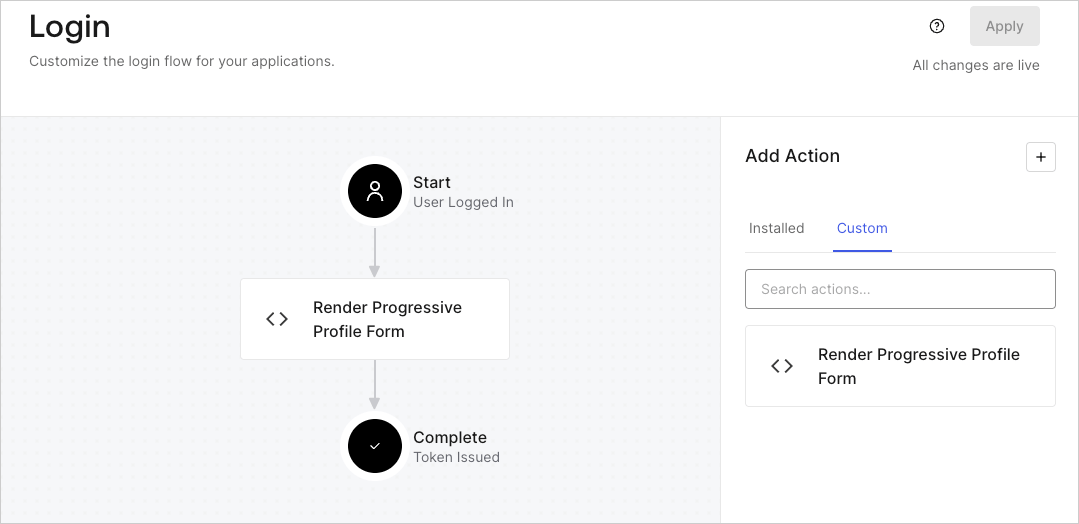
5. Drag and Drop the **Render Progressive Profile Form** Action to the **Login** flow.
   <Frame>
     <img src="https://mintcdn.com/docs-staging-feat-acul-js-sdk-1-7-0-docs/p3qdoSb7nBTNJAo4/docs/images/cdy7uua7fh8z/1QjjZdpTqTxx012UDN4xk9/99fba5ef4068a5688f1762eea7f42976/renderprogessiveprofile.png?fit=max&auto=format&n=p3qdoSb7nBTNJAo4&q=85&s=bf69820f9ff13b2937f96f00c676b1a8" alt="Dashboard > Forms > Use Cases Progressive Profile Login Action" data-og-width="1079" width="1079" data-og-height="524" height="524" data-path="docs/images/cdy7uua7fh8z/1QjjZdpTqTxx012UDN4xk9/99fba5ef4068a5688f1762eea7f42976/renderprogessiveprofile.png" data-optimize="true" data-opv="3" srcset="https://mintcdn.com/docs-staging-feat-acul-js-sdk-1-7-0-docs/p3qdoSb7nBTNJAo4/docs/images/cdy7uua7fh8z/1QjjZdpTqTxx012UDN4xk9/99fba5ef4068a5688f1762eea7f42976/renderprogessiveprofile.png?w=280&fit=max&auto=format&n=p3qdoSb7nBTNJAo4&q=85&s=1e59f0f2d83e79f0bf223b7d95bfa369 280w, https://mintcdn.com/docs-staging-feat-acul-js-sdk-1-7-0-docs/p3qdoSb7nBTNJAo4/docs/images/cdy7uua7fh8z/1QjjZdpTqTxx012UDN4xk9/99fba5ef4068a5688f1762eea7f42976/renderprogessiveprofile.png?w=560&fit=max&auto=format&n=p3qdoSb7nBTNJAo4&q=85&s=fd12b50ab8a881dee8291873b8d1d017 560w, https://mintcdn.com/docs-staging-feat-acul-js-sdk-1-7-0-docs/p3qdoSb7nBTNJAo4/docs/images/cdy7uua7fh8z/1QjjZdpTqTxx012UDN4xk9/99fba5ef4068a5688f1762eea7f42976/renderprogessiveprofile.png?w=840&fit=max&auto=format&n=p3qdoSb7nBTNJAo4&q=85&s=4f0f0042a3eed98456a5e55f6dfef3b9 840w, https://mintcdn.com/docs-staging-feat-acul-js-sdk-1-7-0-docs/p3qdoSb7nBTNJAo4/docs/images/cdy7uua7fh8z/1QjjZdpTqTxx012UDN4xk9/99fba5ef4068a5688f1762eea7f42976/renderprogessiveprofile.png?w=1100&fit=max&auto=format&n=p3qdoSb7nBTNJAo4&q=85&s=6d7a8f91e6618796dc9cb271970a94ac 1100w, https://mintcdn.com/docs-staging-feat-acul-js-sdk-1-7-0-docs/p3qdoSb7nBTNJAo4/docs/images/cdy7uua7fh8z/1QjjZdpTqTxx012UDN4xk9/99fba5ef4068a5688f1762eea7f42976/renderprogessiveprofile.png?w=1650&fit=max&auto=format&n=p3qdoSb7nBTNJAo4&q=85&s=3a52e37e80429608d3557d44f3b0a05b 1650w, https://mintcdn.com/docs-staging-feat-acul-js-sdk-1-7-0-docs/p3qdoSb7nBTNJAo4/docs/images/cdy7uua7fh8z/1QjjZdpTqTxx012UDN4xk9/99fba5ef4068a5688f1762eea7f42976/renderprogessiveprofile.png?w=2500&fit=max&auto=format&n=p3qdoSb7nBTNJAo4&q=85&s=f441a009464439c6c0fbfe9a27cddedc 2500w" />
   </Frame>
6. Select **Apply**.

### Test implementation

Test the implementation by following these steps:

1. Log in with an existing user whose login count is greater than 2 and their `user_metadata` attributes `company_name` and `job_title` have no values.
2. The post-login action in the Login flow will render the form and prompt for the information.
3. Select **Auth0 Dashboard > User Management > Users,** locate the user and verify that the `user_metadata` attributes `company_name` and `job_title` contain information.
